
Airport Picker
General
The airport picker contains four pages or views as depicted below. The pages with airports list can show only cached airports. On the other hand, the map page can show you all the 45 000+ airports the app is aware of.
Should I use the map or the lists?
If an airport of interest is within the autosearch range (150 NM default) or you have already visited it, it can be found from the lists. In other cases, you'll find it from the map page.
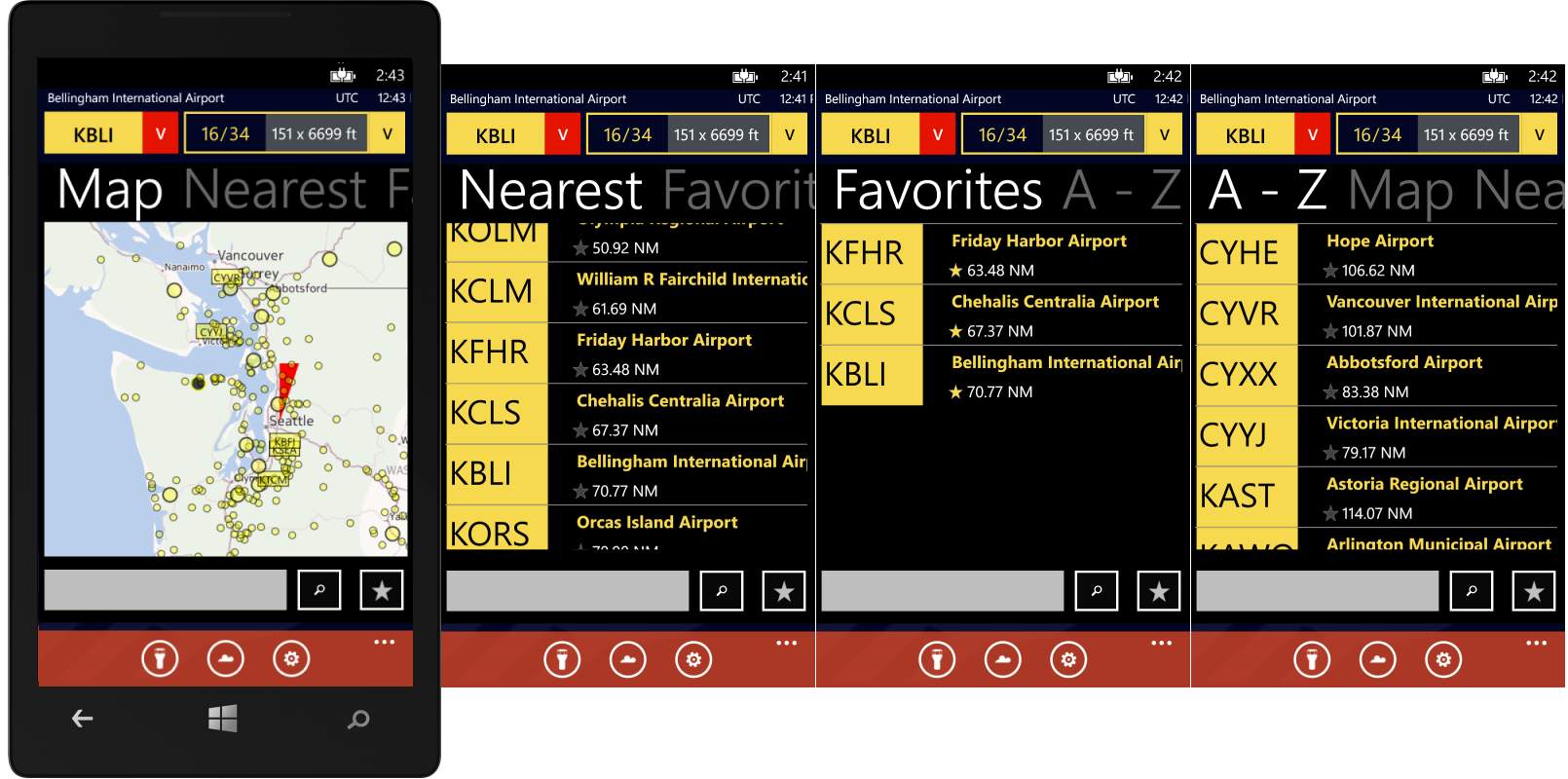
Selecting an Airport
You can select an airport by using any of the four pages. On the pages showing airport list, select an airport by tapping a row containing the airport you are interested in. On the map view, zoom in so that the rectangles (or circles) representing airports become big enough and then tap the rectangle.
Editing Favorites
Adding
You can add an airport to favorites list from the Nearest and A-Z pages.
Tap the star button at the lower part of the screen (next to search box and search button) which will become highlighted.
Now you can add an airport to the favorites by tapping an airport on the list.
Finish editing by tapping the star button again, or by moving into another page.
Removing
You can remove an airport from the favorites list when you're viewing any of the list pages.
Tap the star button at the lower part of the screen (next to search box and search button) which will become highlighted.
Now you can remove an airport from the favorites by tapping one of the starred airports on the list.
Finish editing by tapping the star button again, or by moving into another page.
Search by ICAO name
ICAO name search works in any of the four airport picker pages.
- Tap the searchbox on the lower part of the view
- Key in the four letter ICAO code
- Tap the search button (the button with an image of magnifying class)
The search may take a while if the airport information is not available on the phone.
Once the search is finished succesfully the airport will be selected automatically and the airport picker will close.
In case the search doesn't find the airport, the app will show an message box asking you to check the ICAO code and try again.
Search a city or locality
This function will work properly only when in a map page.
- Tap the search box on the lower part of the view
- Key in the name of a city or a locality
- Tap the search button (the button with an image of magnifying class)
As soon as the search is finished succesfully, the map will center to a location you searched for. From there you can pan or zoom the map to locate nearby airports.
Using the map
Panning and zooming
Swipe the map with your finger in order to pan the map in any direction.
Zoom in by pinching your fingers on the map.
Zoom out by unpinching (or spreading) your fingers on the map.
Airports on the map
Windy XD classifies airports into three size categories:
- Large, usually international airports
- Medium size, usually regional airports and equipped with autometar weather stations.
- Small, typically private airfields or airfields that don't have regular commercial traffic.
The app selects the appropriate overlay (a circle or rectangle representing an airport) based on map zoom level and number of different size airports in the view. The purpose is to avoid cluttering the view with too much information.
The largest visible overlay is always associated with largest airports in the view. Airports in smaller size category will be associated smaller overlays according to their sizes.